How to use Creative Studio with S Pen | Galaxy AI | Galaxy Tab S12 Series | Samsung

지금 보고 있는 영상

How to use Creative Studio with S Pen | Galaxy AI | Galaxy Tab S12 Series | Samsung
조회수 16,387
영상 설명 · 눌러서 펼치기
This is the official video guide to creating your own sticker set in Creative studio with Galaxy AI and the hexagonal S Pen on Galaxy Tab S12 Series. Turn your sketch into personalized stickers by drawing freely with S Pen or tracing your favorite photos from your gallery. Choose from different styles and if you want to add more specific details, add a text prompt. From a simple sketch to a personalized creation, Galaxy Tab S12 Series gives you more ways to capture your ideas and bring your imagination to life. Learn more: http://smsng.co/TabS12_CreativeStudio_Howto_yt
00:00 Intro
00:17 Sketch and create stickers
Follow these steps to create custom sticker sets using Creative studio and Galaxy AI with S Pen on Galaxy Tab S12 Series.
Sketch and create stickers
Step 1: Open Creative Studio and tap 'Create sticker'.
Step 2: Draw your idea with S Pen. If you need a reference, choose a photo from your gallery and trace it.
Step 3: Choose your preferred art style. If you want to add more specific details, you can also add a text prompt, then tap 'Generate' to create your sticker.
Step 4: Tap 'Generate sticker set', choose a style, and tap 'Generate'.
Step 5: Tap 'Save sticker set' to save your custom stickers and use them in your notes.
Q: Do I need a gallery photo or text prompt to create a sticker?
A: No. Both are optional. You can create a sticker simply by drawing with S Pen.
Q: What can I create with Creative studio on Galaxy Tab S12 Series?
A: You can create personalized stickers, invitations, greeting cards, profile cards, wallpapers, and more with Galaxy AI and S Pen.
#GalaxyAI #GalaxyTabS12Ultra #GalaxyTabS12 #Samsung
00:00 Intro
00:17 Sketch and create stickers
Follow these steps to create custom sticker sets using Creative studio and Galaxy AI with S Pen on Galaxy Tab S12 Series.
Sketch and create stickers
Step 1: Open Creative Studio and tap 'Create sticker'.
Step 2: Draw your idea with S Pen. If you need a reference, choose a photo from your gallery and trace it.
Step 3: Choose your preferred art style. If you want to add more specific details, you can also add a text prompt, then tap 'Generate' to create your sticker.
Step 4: Tap 'Generate sticker set', choose a style, and tap 'Generate'.
Step 5: Tap 'Save sticker set' to save your custom stickers and use them in your notes.
Q: Do I need a gallery photo or text prompt to create a sticker?
A: No. Both are optional. You can create a sticker simply by drawing with S Pen.
Q: What can I create with Creative studio on Galaxy Tab S12 Series?
A: You can create personalized stickers, invitations, greeting cards, profile cards, wallpapers, and more with Galaxy AI and S Pen.
#GalaxyAI #GalaxyTabS12Ultra #GalaxyTabS12 #Samsung
Samsung 다른 영상

The Journey of the Moon Jar | Samsung
조회수 3,151

Unboxing Galaxy Tab S12+ | Samsung
조회수 29,532
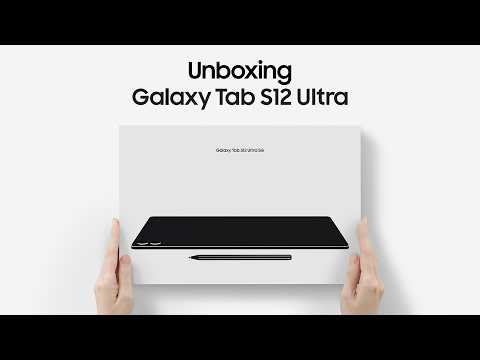
Unboxing Galaxy Tab S12 Ultra | Samsung
조회수 78,533

Introducing Galaxy Tab S12 Ultra | Samsung
조회수 246,172

Inside Daniel Arsham’s Creative World | Samsung
조회수 4,781

Spatial Signage: Bringing Immersive Experiences into the Real World | Samsung
조회수 41,083

Samsung P9 P7 Portable SSD Launching Event
조회수 134,456

A Billion Reasons to Switch | Samsung
조회수 21,215,219