How to use Gemini Notebook | Galaxy Z Fold8 Ultra, Fold8, and Flip8 | Samsung
지금 보고 있는 영상
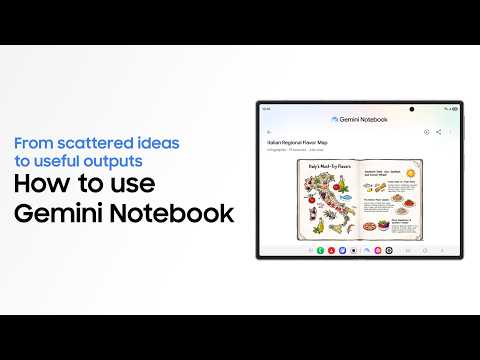
How to use Gemini Notebook | Galaxy Z Fold8 Ultra, Fold8, and Flip8 | Samsung
조회수 660
영상 설명 · 눌러서 펼치기
This is the official video guide on how to use Gemini Notebook. Got notes, photos, URLs, and ideas scattered everywhere? 😵💫 Gemini Notebook helps you pull everything together, make sense of your information and turn it into useful outputs. From planning a trip to staying informed on the go, Infographics and Audio Overviews make your information easier to understand and use. It’s recommended for anyone looking for a smarter way to explore information and organize ideas 🚀 Learn more: http://smsng.co/ZFold8_GeminiNotebook_Howto_yt
00:00 Intro
00:13 Create an Infographic
02:00 Create an Audio Overview
Follow these steps to use Gemini Notebook to the fullest:
Step 1: Open Gemini Notebook and select the notebook you want to use. To add multiple photos easily, drag the Gallery app into Screen View, select your images, and drag and drop them directly into your notebook. When you’re done, tap the ‘Handle’ bar, then tap the ‘Close’ button to return to full screen. You can also tap ‘+ Add a source’ to add other types of sources.
Step 2: To create an Infographic, tap ‘Studio’, then select ‘Infographic’. Choose your preferred length and language, enter a prompt and tap ‘Generate’. Gemini Notebook will then organize your information into a visual format, making your plans easier to grasp.
Step 3: To generate an Audio Overview, tap 'Studio' and select 'Audio Overview'. Choose your preferred length and language, enter your prompt, and tap ‘Generate’ to create an overview you can listen to on the go. You can also explore more ways to work with your information in Studio, including Flashcards, Quiz, Slide Deck, and Video Overview.
Q: What content format options can I create using Gemini Notebook on Galaxy Z Fold8?
A: Gemini Notebook provides a variety of output types including Infographics, Audio Overviews, Flashcards, Quiz, Slide Deck, and Video Overview. These diverse formats allow you to explore, analyze, and present your collected information in different ways.
Q: How do I maximize Gemini Notebook productivity on the large main screen?
A: On Galaxy Z Fold8 Ultra and Galaxy Z Fold8, the large screen gives you more room to work across apps and review your results. Open Gemini Notebook alongside another supported app in Split View to add content more easily, then view outputs like infographics on the large screen.
Q: Can I listen to an Audio Overview hands-free while away from Galaxy Z Fold8?
A: Yes, the Audio Overview generates an audio summary from your sources that you can listen to on the go. This allows you to stay informed and digest key details hands-free when you are away from the display.
#GalaxyZFold8Ultra #GalaxyZFold8 #GalaxyZFlip8 #Samsung
00:00 Intro
00:13 Create an Infographic
02:00 Create an Audio Overview
Follow these steps to use Gemini Notebook to the fullest:
Step 1: Open Gemini Notebook and select the notebook you want to use. To add multiple photos easily, drag the Gallery app into Screen View, select your images, and drag and drop them directly into your notebook. When you’re done, tap the ‘Handle’ bar, then tap the ‘Close’ button to return to full screen. You can also tap ‘+ Add a source’ to add other types of sources.
Step 2: To create an Infographic, tap ‘Studio’, then select ‘Infographic’. Choose your preferred length and language, enter a prompt and tap ‘Generate’. Gemini Notebook will then organize your information into a visual format, making your plans easier to grasp.
Step 3: To generate an Audio Overview, tap 'Studio' and select 'Audio Overview'. Choose your preferred length and language, enter your prompt, and tap ‘Generate’ to create an overview you can listen to on the go. You can also explore more ways to work with your information in Studio, including Flashcards, Quiz, Slide Deck, and Video Overview.
Q: What content format options can I create using Gemini Notebook on Galaxy Z Fold8?
A: Gemini Notebook provides a variety of output types including Infographics, Audio Overviews, Flashcards, Quiz, Slide Deck, and Video Overview. These diverse formats allow you to explore, analyze, and present your collected information in different ways.
Q: How do I maximize Gemini Notebook productivity on the large main screen?
A: On Galaxy Z Fold8 Ultra and Galaxy Z Fold8, the large screen gives you more room to work across apps and review your results. Open Gemini Notebook alongside another supported app in Split View to add content more easily, then view outputs like infographics on the large screen.
Q: Can I listen to an Audio Overview hands-free while away from Galaxy Z Fold8?
A: Yes, the Audio Overview generates an audio summary from your sources that you can listen to on the go. This allows you to stay informed and digest key details hands-free when you are away from the display.
#GalaxyZFold8Ultra #GalaxyZFold8 #GalaxyZFlip8 #Samsung
Samsung 다른 영상

How to Use Mirror View | Galaxy Z Flip8 | Samsung
조회수 642

Shape your heart health with Samsung Health | Galaxy AI
조회수 15,961

Unfold Your Inner Fan | Galaxy Z Fold8 | Samsung
조회수 19,218

aespa Takes the Stage on Samsung TV Plus
조회수 13,396

Korean National Treasures: Art and Tech
조회수 11,484

Korean National Treasures: The Lee Kun-Hee Collection
조회수 8,516

Build your own Fitness Index with Samsung Health | Galaxy AI
조회수 41,353

Unfold Your Insights | Galaxy Z Fold8 | Samsung
조회수 72,241